Jendpoint Restaurant Platform
Every order, one calm counter.
The Jendpoint Restaurant Platform runs your whole counter on its own, from the first order to closing up: counter, kiosk, kitchen and payments, set up on site by Jendpoint IT Services.
Now booking demos for our three founding restaurants.
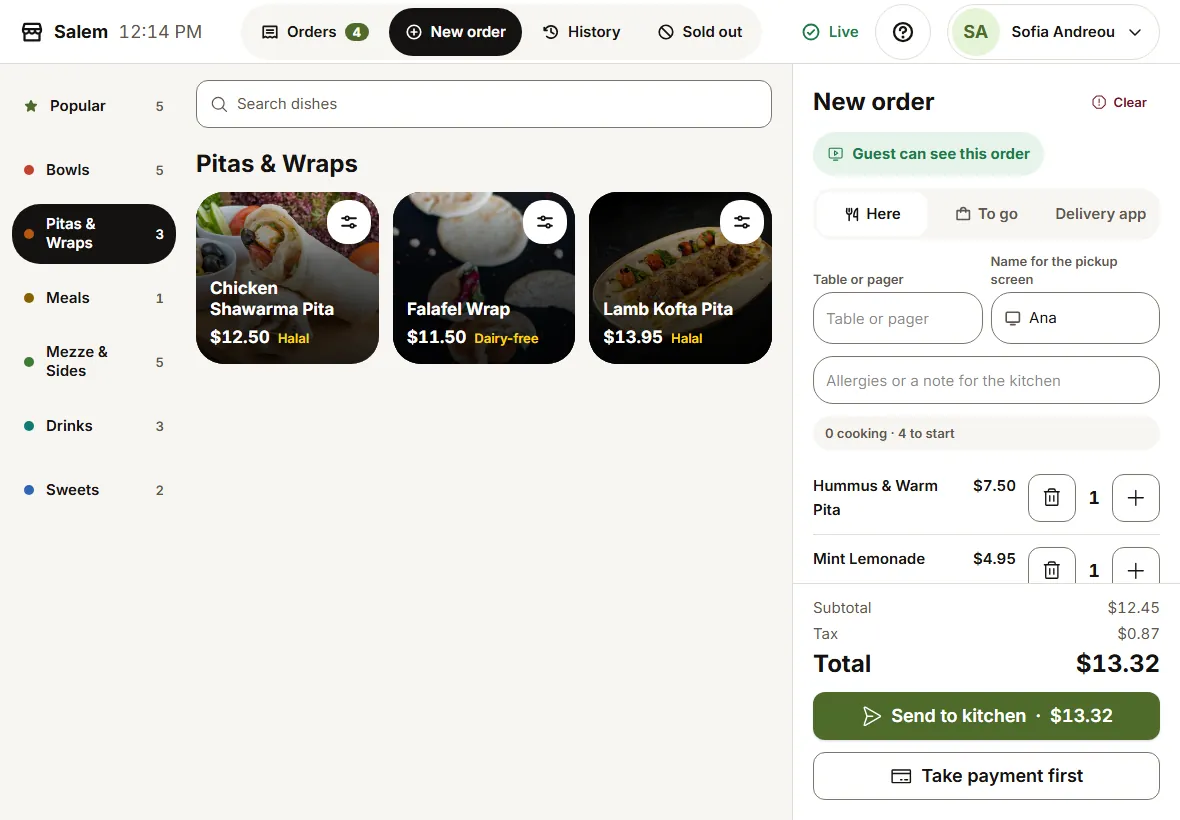
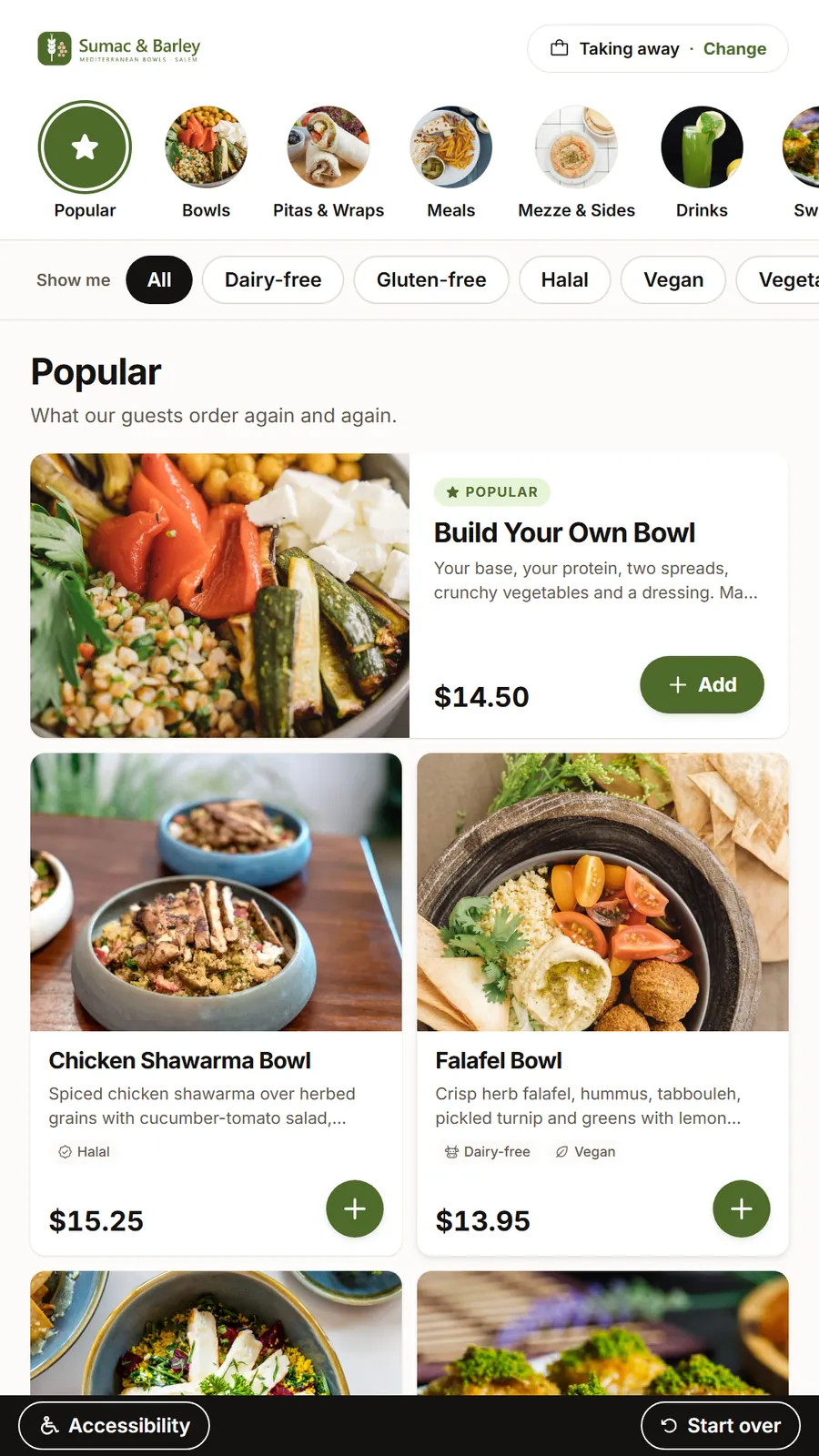
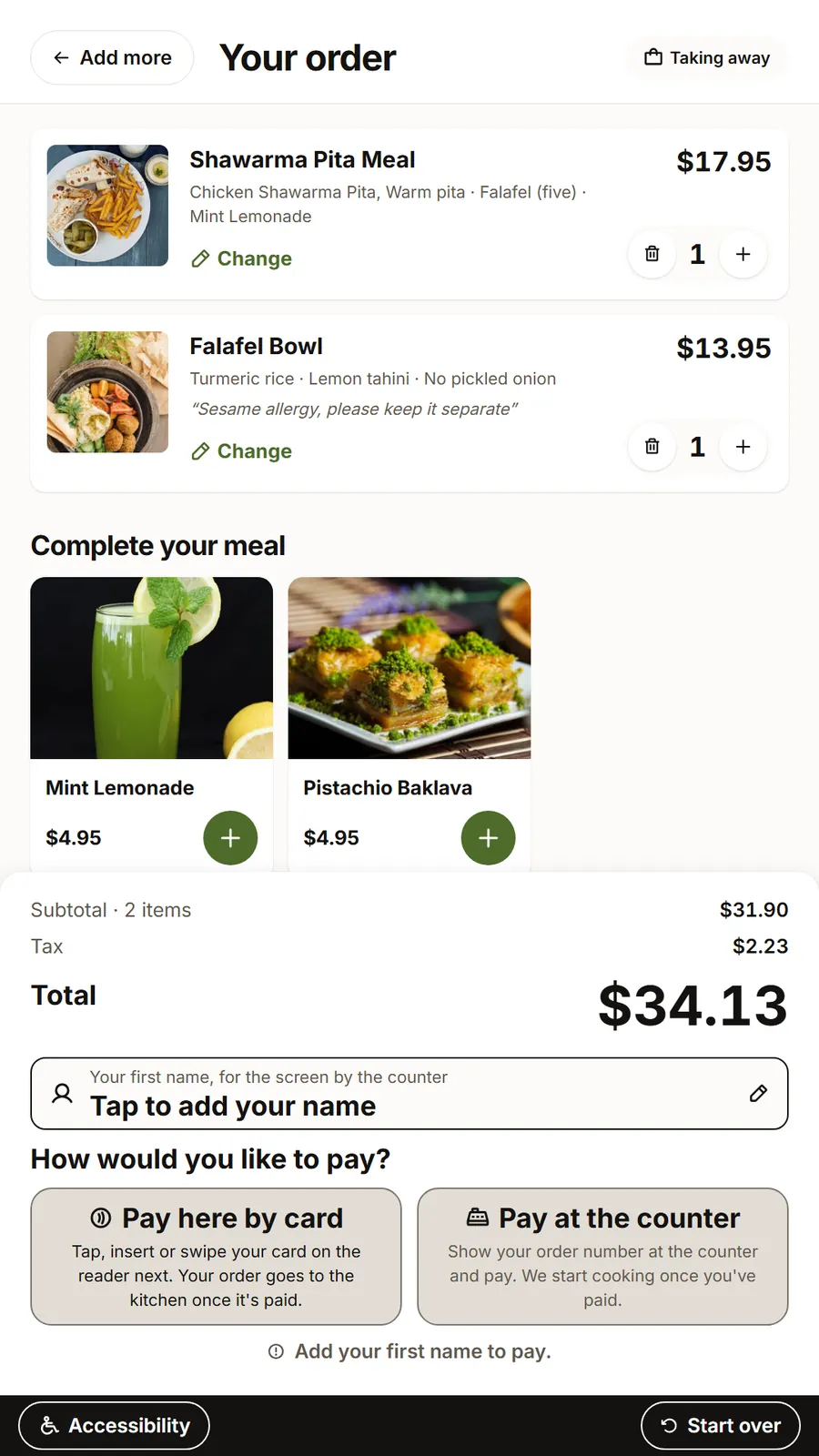
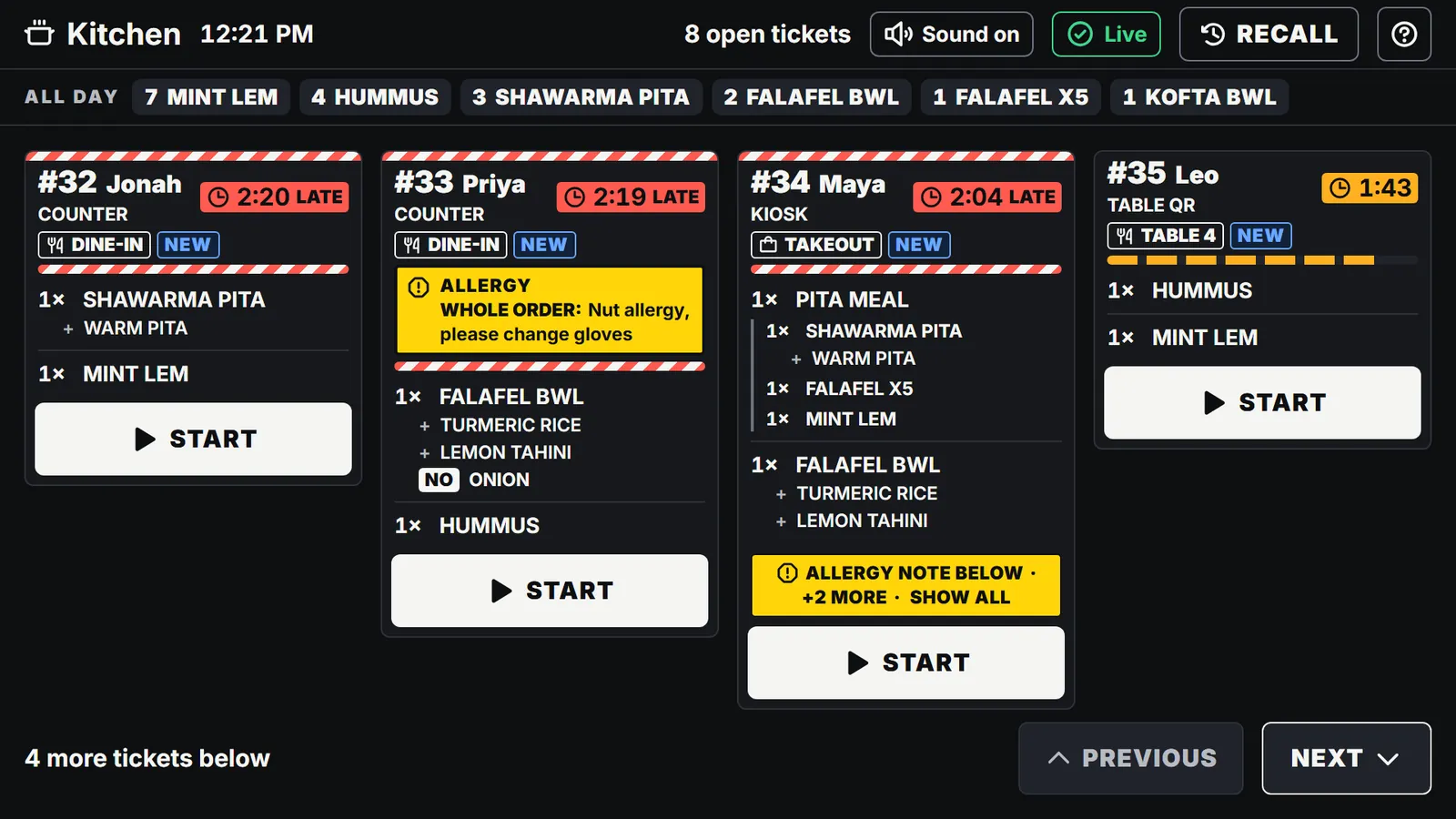
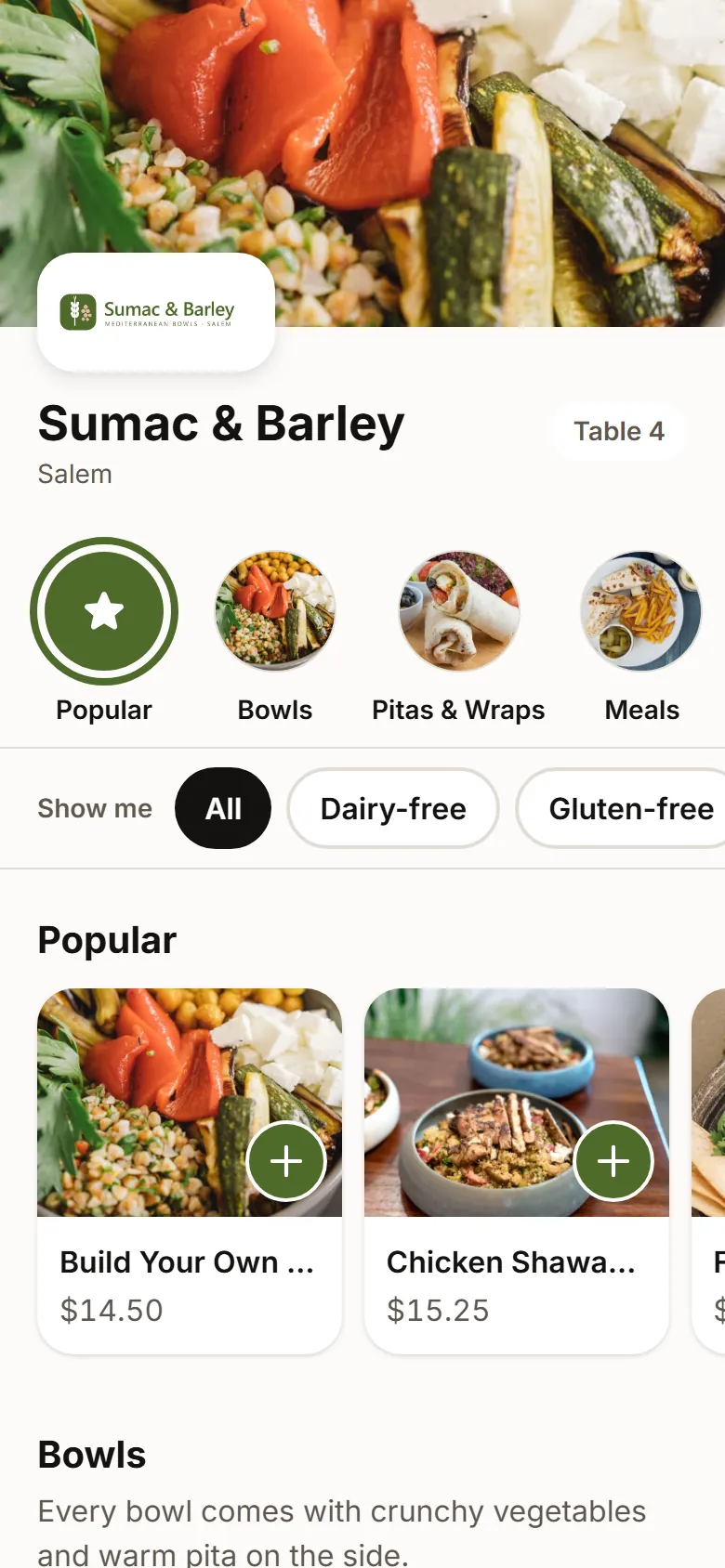
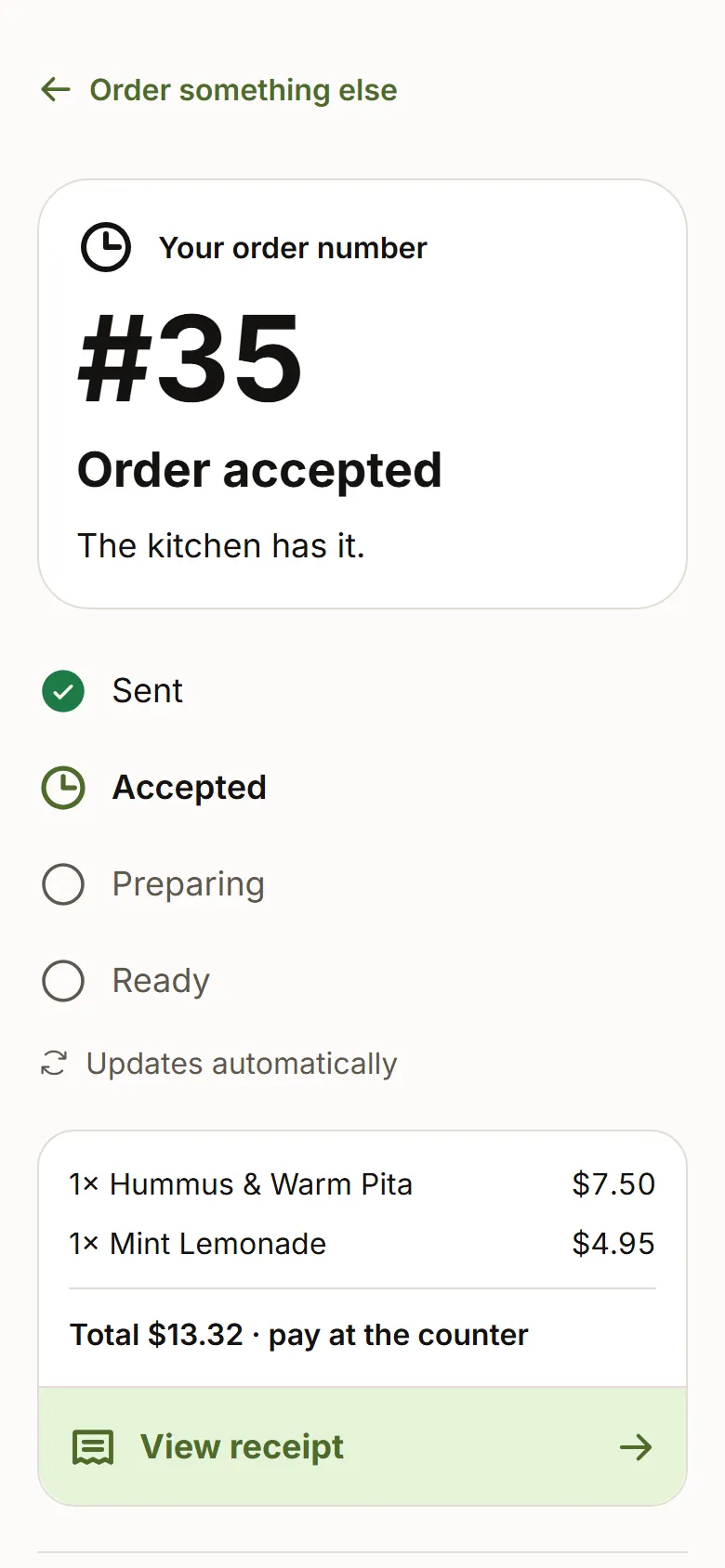
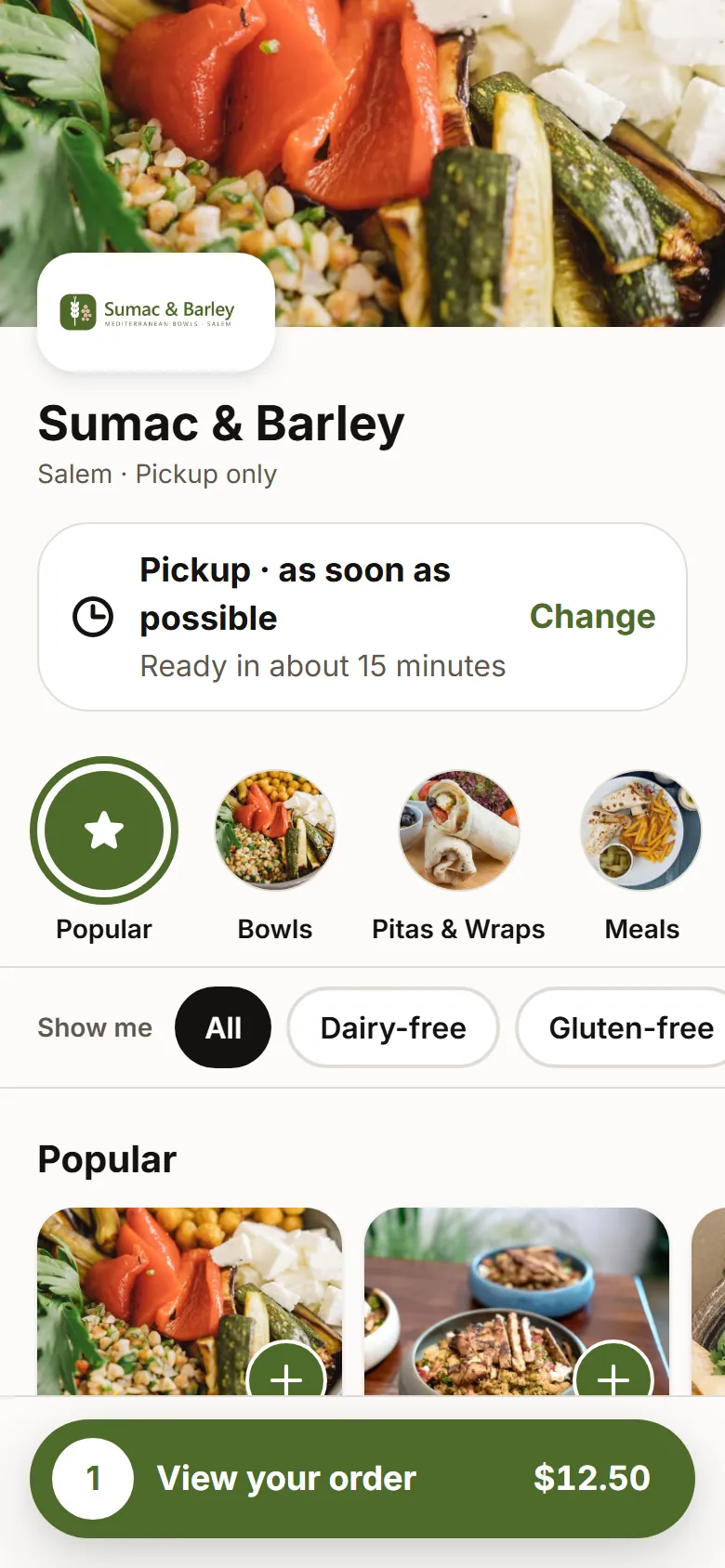
Screens from our demo restaurants.
The film
The whole restaurant, in two minutes.
Sumac & Barley is one of our demo restaurants. Watch every screen work together, and see how we look after them.
Every way to order
Every way to order, one kitchen.
Orders come in from the counter, the kiosk, the table, your website and the delivery apps. They land in one queue, go to one kitchen and count toward the same day's total.
At the counter
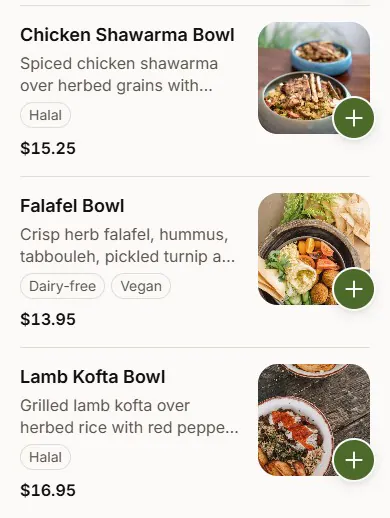
A photo menu with sizes, choices and kitchen notes. Dine-in or to-go, and phone orders with the guest's first name.
The self-service kiosk Professional
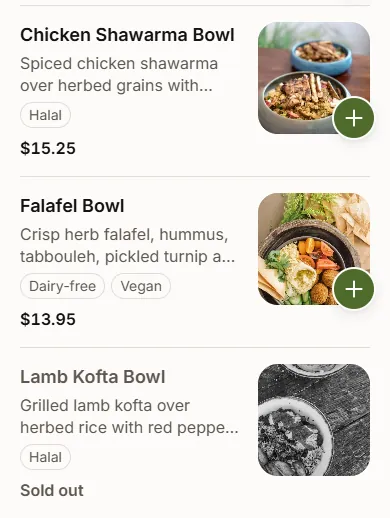
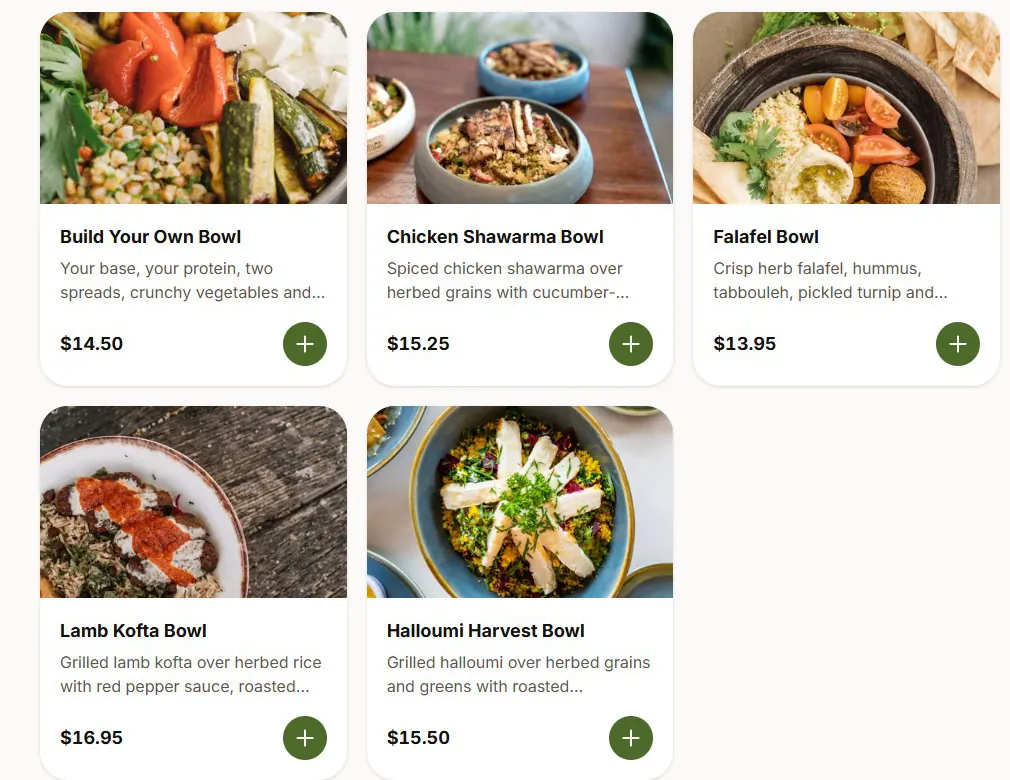
Big food photos, choices and allergens, dietary filters and suggested add-ons. Guests pay by card, with tips, or at the counter.
At the table
Guests scan the table card and order on their own phone. No app, no account. Staff can accept table orders first.
Online, for pickup
Guests order from the restaurant's website and choose a pickup time.
Delivery apps
DoorDash, Uber Eats and Grubhub orders are typed in at the counter. They're already paid, so they stay out of the cash drawer, and the kitchen gets the ticket with the app's order code.
The kiosk, in three screens Professional
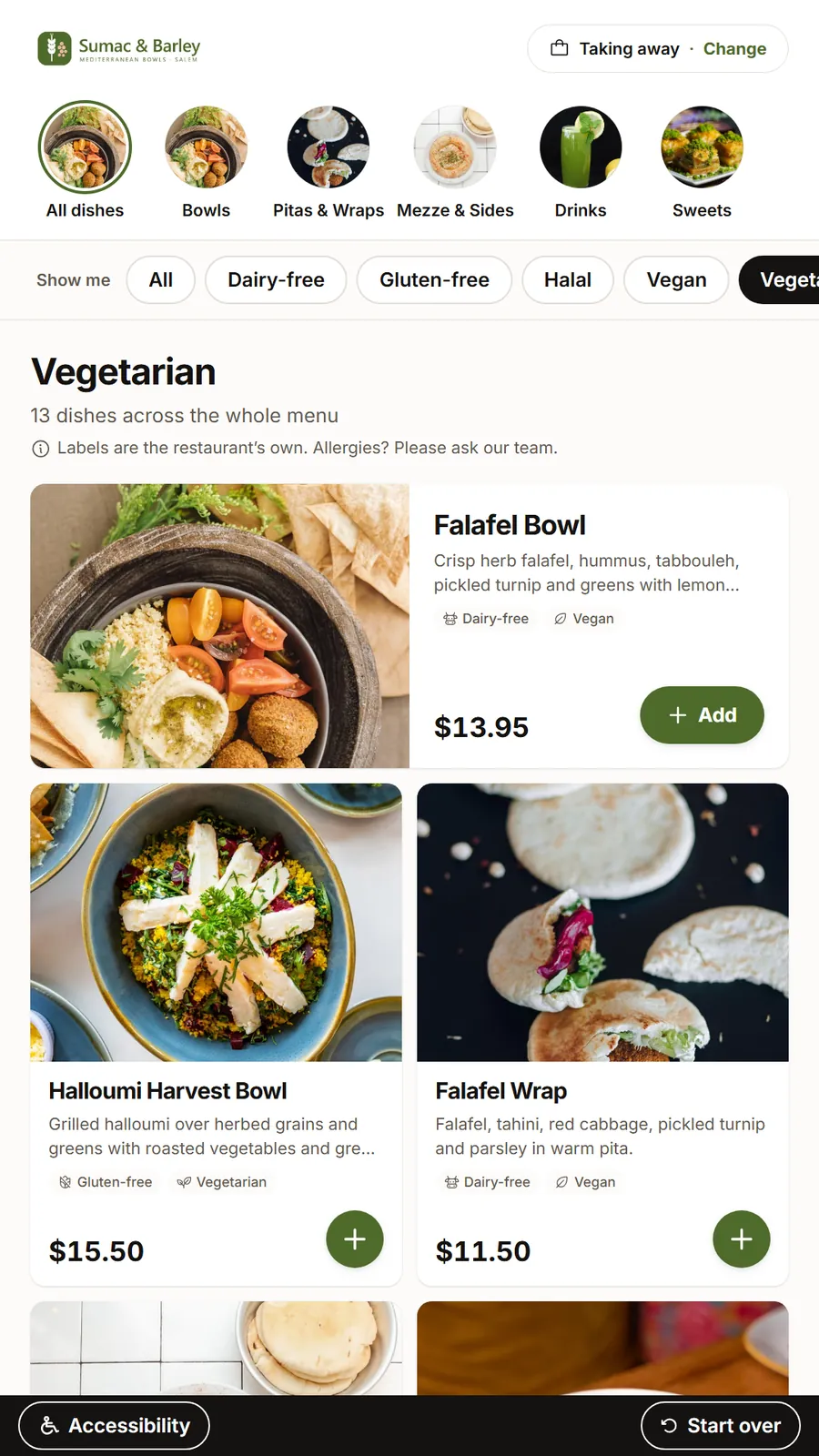
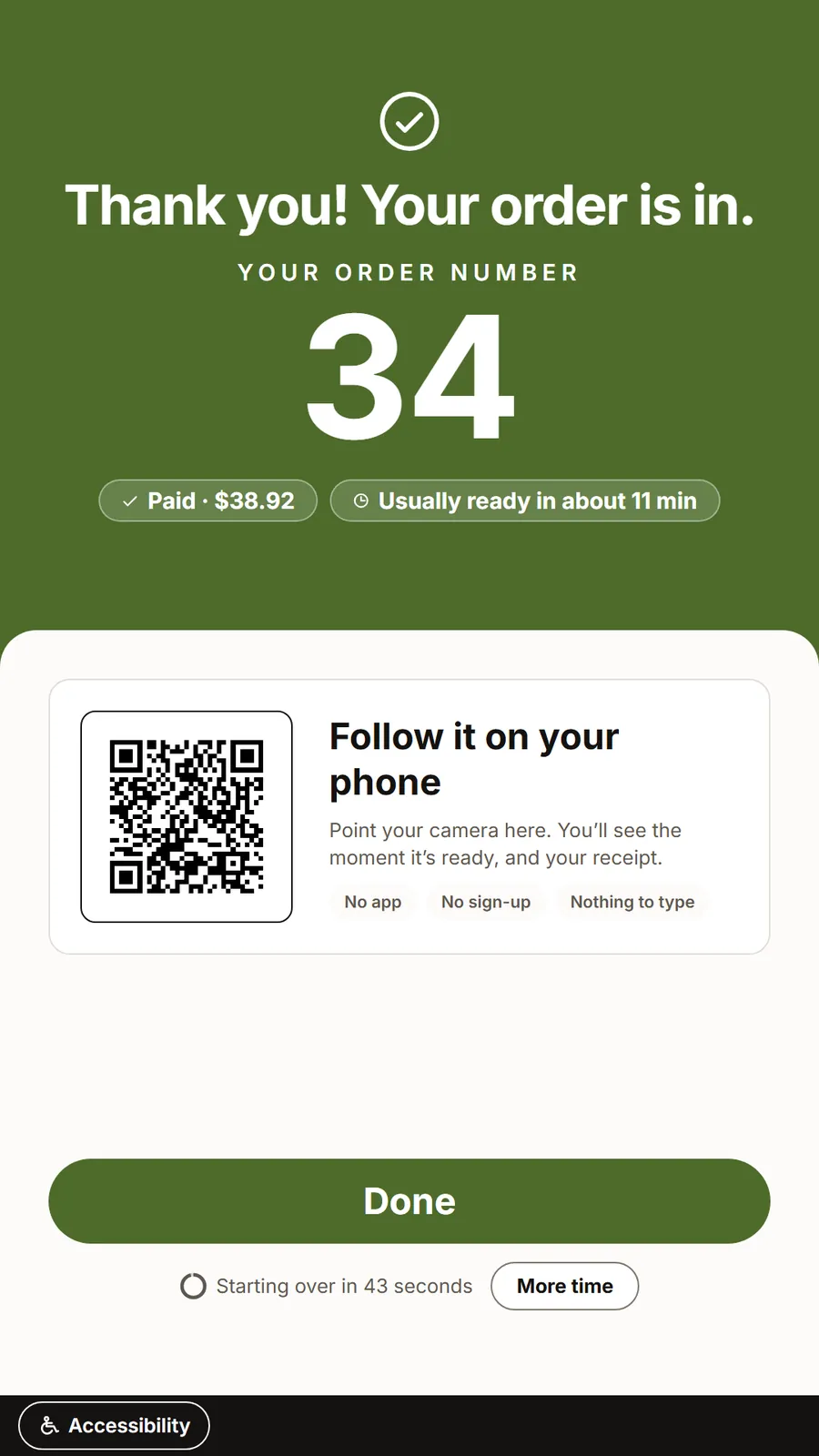
Dietary filters, the guest's first name for the pickup screen, then a receipt and a code to follow the order on their phone.
- Filter by what they can eat
- Name and pay, on one screen
- A receipt, and a code to follow the order
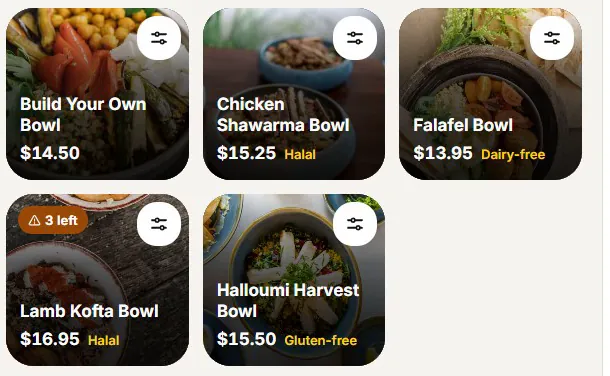
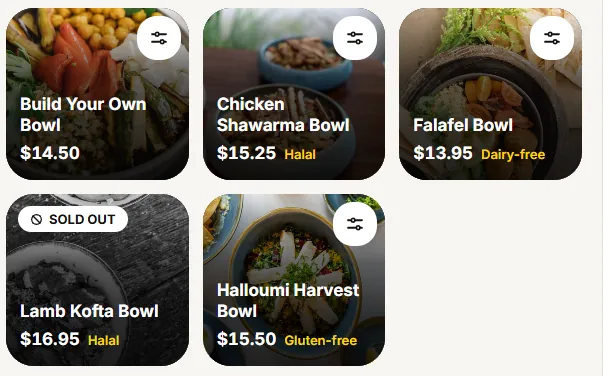
Dish counts, sold out within seconds.
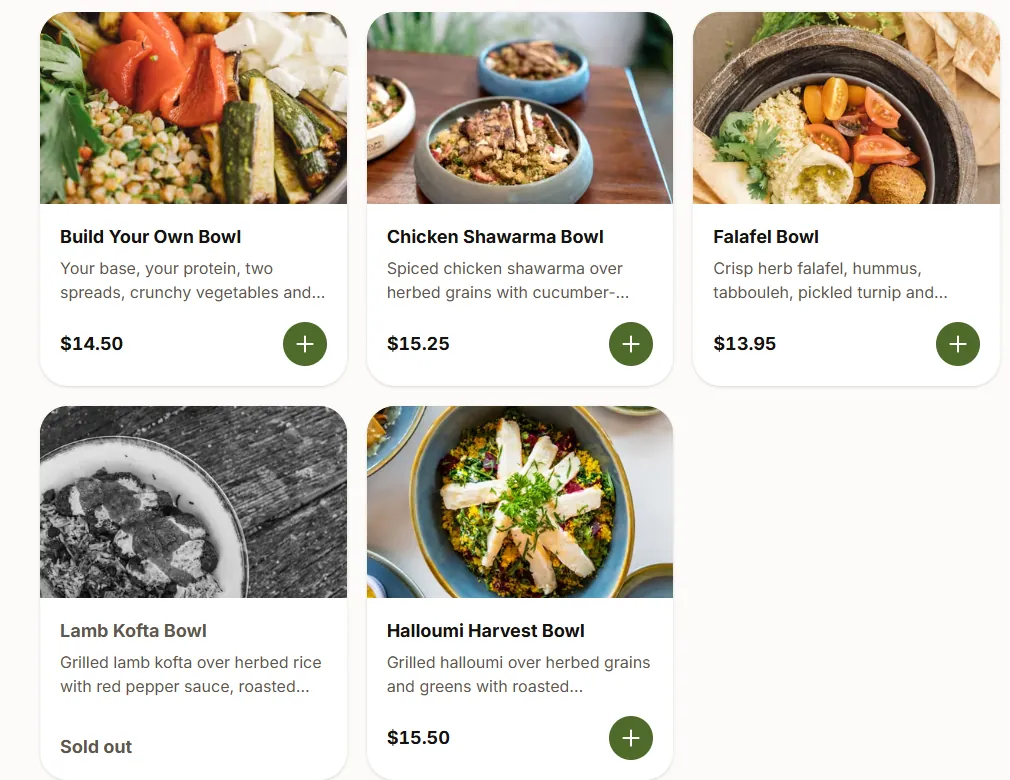
Set a count when only so many are left, and it sells down on every channel. At zero the dish is sold out straight away on the counter and the kiosk, and within seconds on guests' phones and your online page. Nobody can order it either way.
A day at your restaurant
A day at your restaurant, start to finish.
From before opening to closing up, here is what the platform does while you run the place.
Before opening
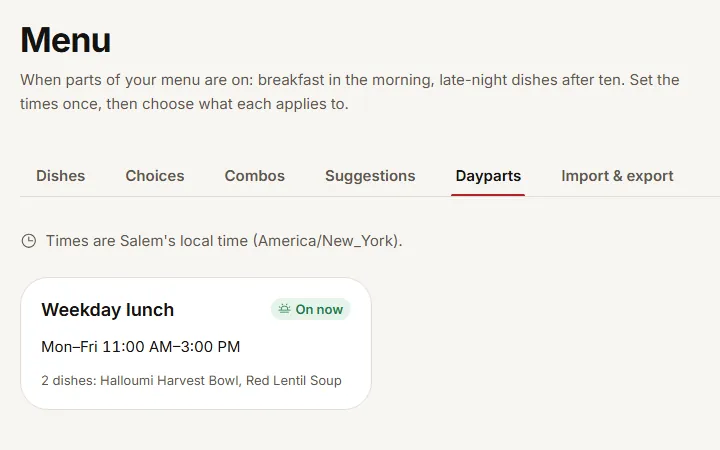
The lunch bowls appear by themselves at 11
Set a daypart once, weekdays 11 to 3, and those dishes come and go on their own. A dish marked "12 left" warns you when it runs low.
The rush
Counter, kiosk, table and online orders in one queue
Every order goes to the kitchen screen, a printed ticket, or both. Allergies stand out on the tickets.
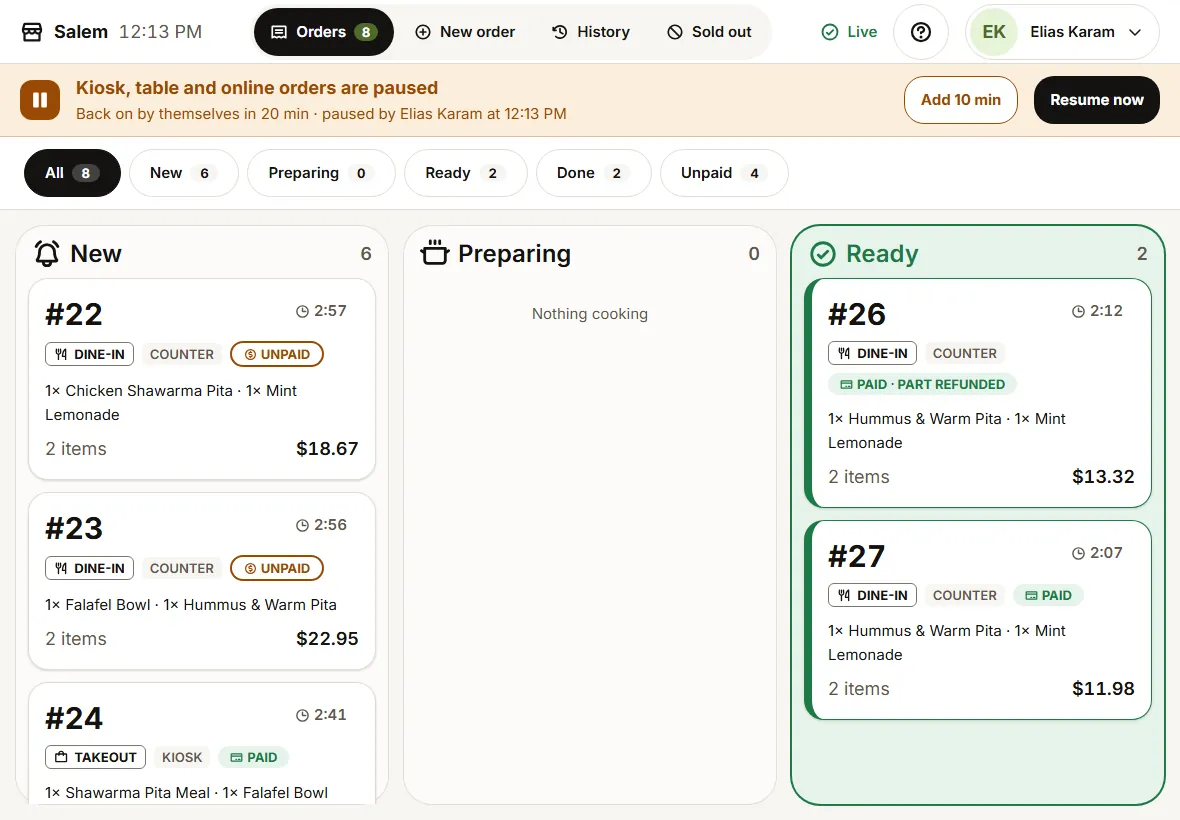
Slammed
Pause the kiosk, table and online orders for 20 minutes
The counter keeps going while the kitchen catches up, and guests see an honest wait time.
Paying
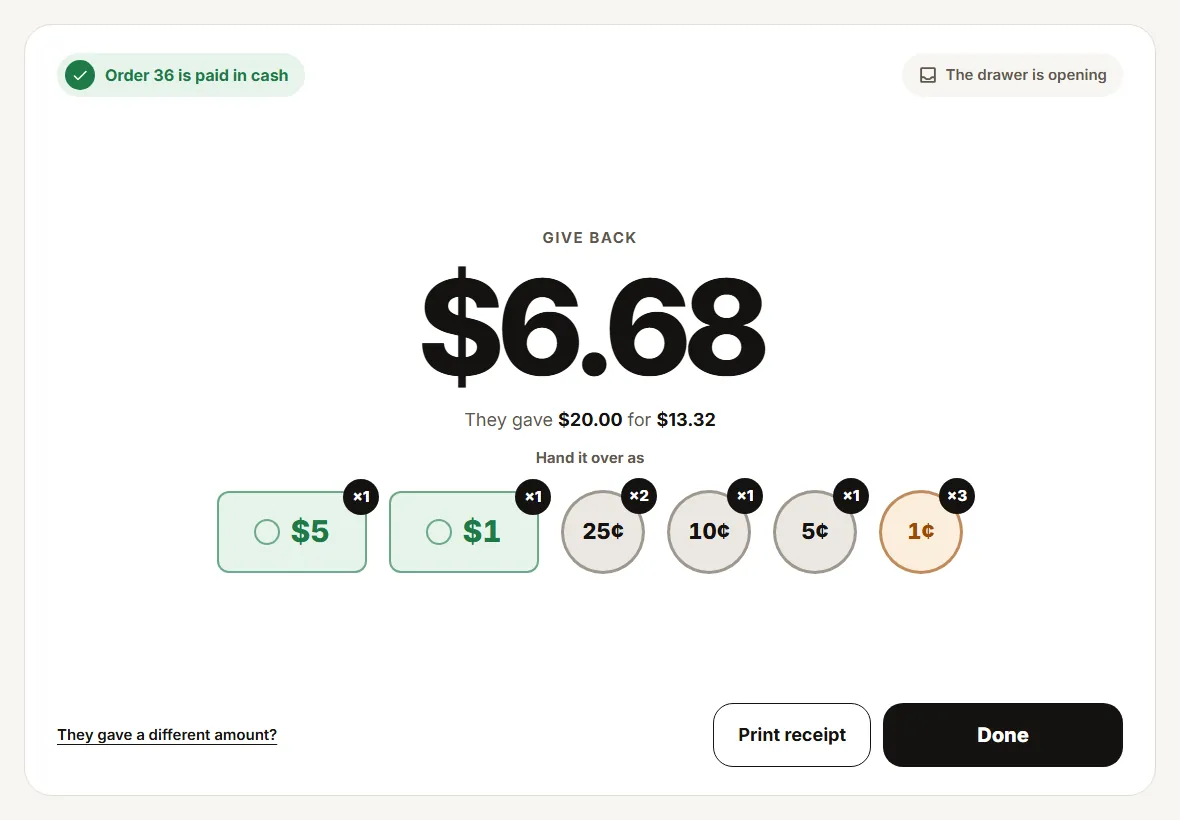
Cash with change due, tips, and a discount a manager approves
Type in what the guest handed over and see the change to give. The cash drawer opens on its own.
Quiet
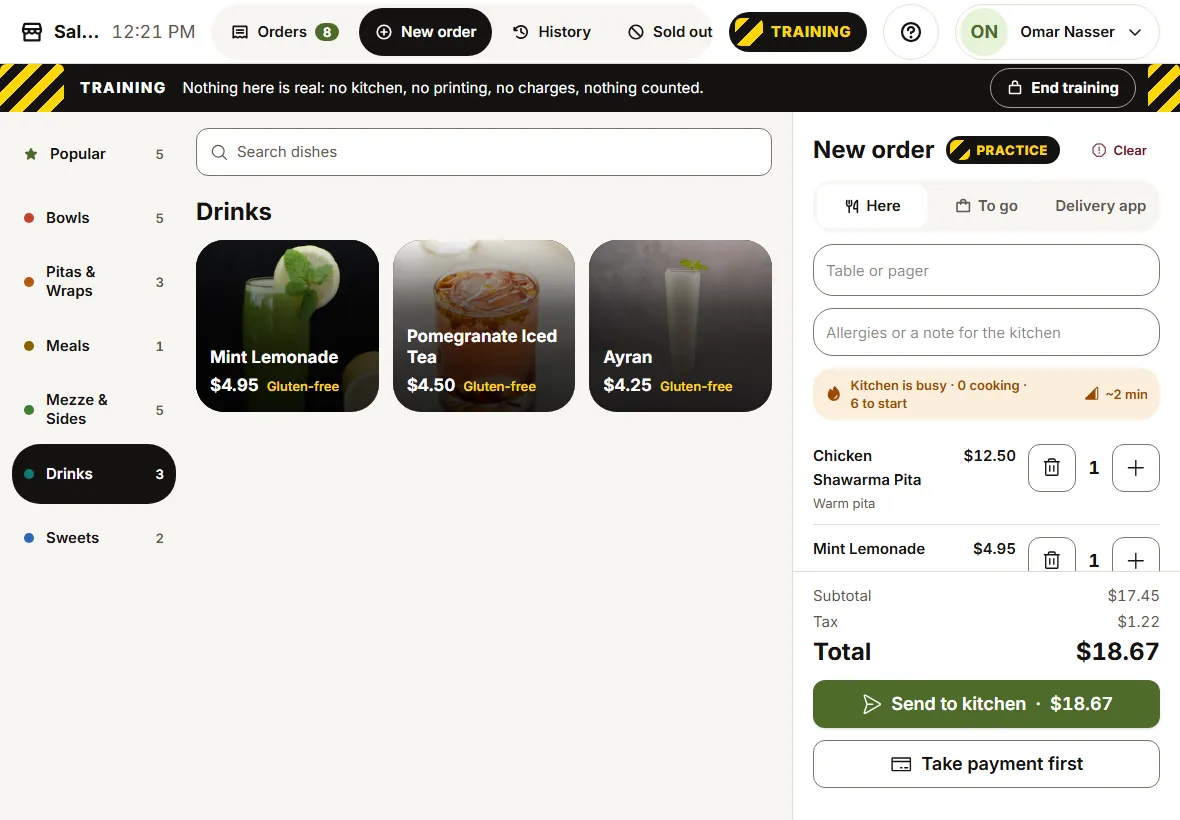
A new hire practices in training mode
New staff learn on the real screens without creating real orders.
Closing up
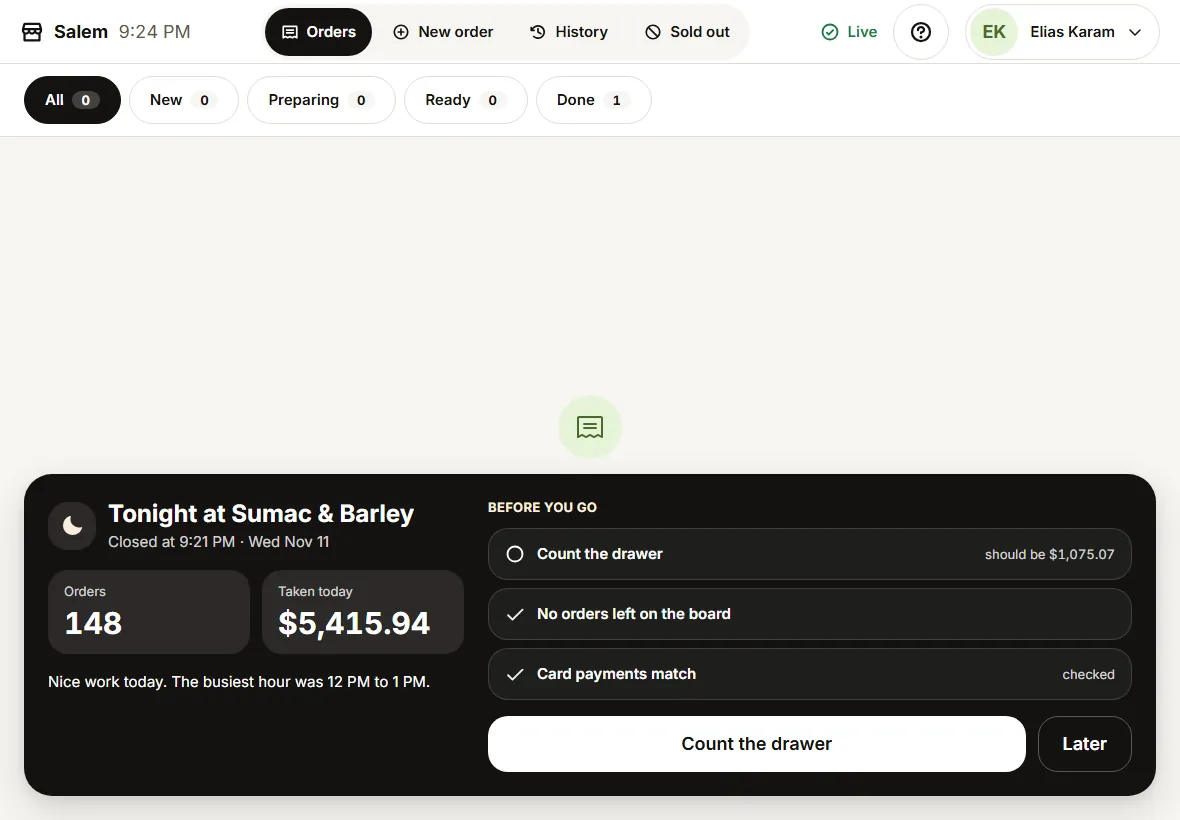
The closing card, count the drawer, close the day
The closing card shows tonight's orders and takings and what's left to do. Closing locks the day's figures.
Next morning
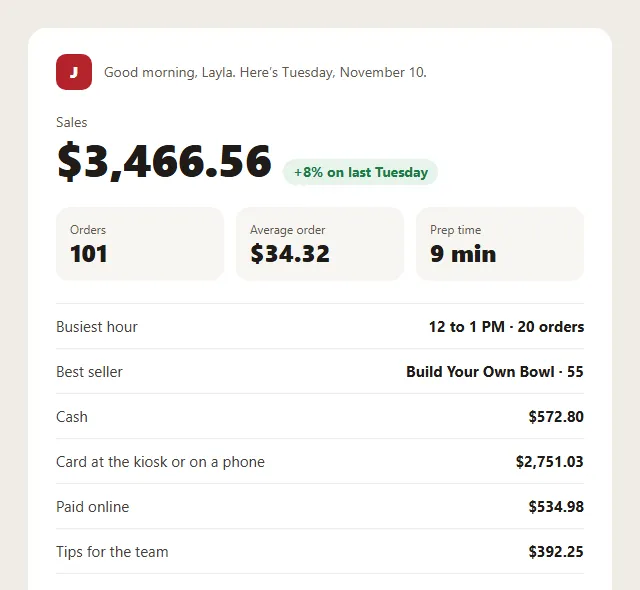
The morning email
Yesterday's sales, orders, busiest hour and best seller, in your inbox before you open.
For each person
Made for everyone on the floor.
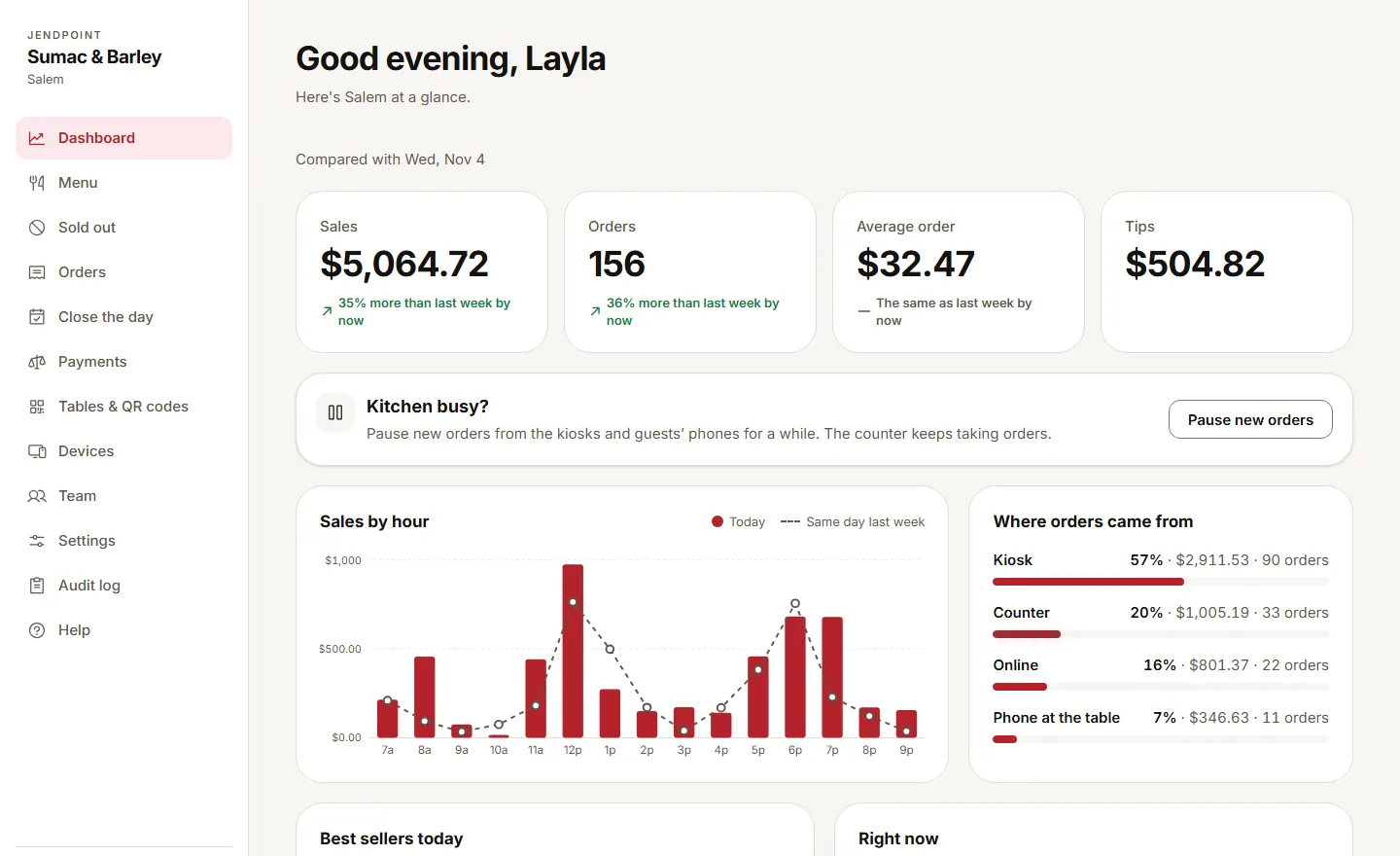
The owner, the counter, the kitchen and the guest each get a screen that fits the job.
The owner
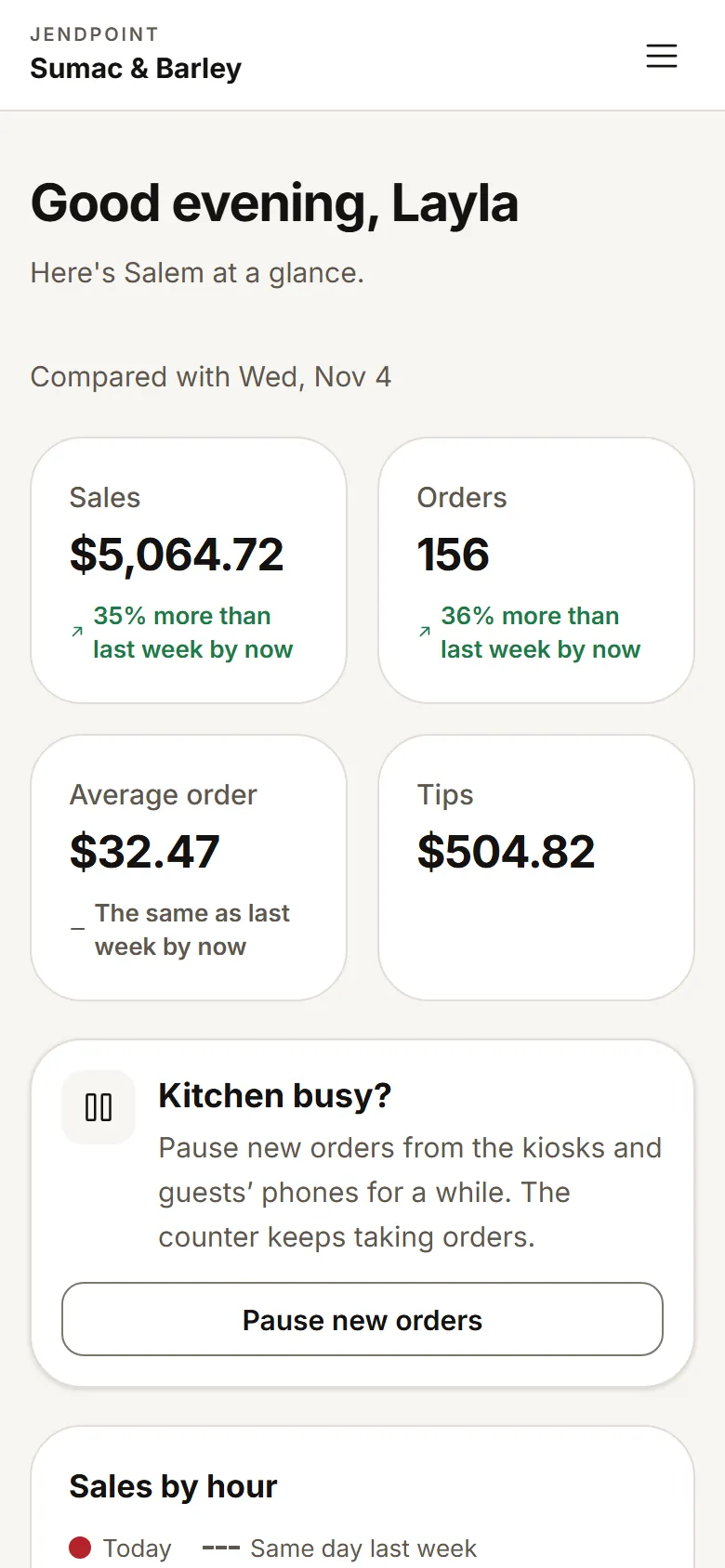
- Today at a glance: orders, sales and money in.
- The menu editor, with a phone preview, photos and menus on a schedule.
- Roles and permissions for owners, managers, shift leads, cashiers, servers and kitchen staff.
- Works on a phone.
The counter
- A photo menu with sizes, choices and notes for the kitchen.
- Dine-in, to-go and phone orders, and delivery-app orders typed in.
- Cash with change due, discounts, refunds and receipts.
- Training mode for new staff.
The kitchen
- A kitchen screen with clear tickets, timers, bump and recall.
- A black ALLERGY band on printed tickets, and a marking on the screen that doesn't rely on colour.
- Printed tickets, the screen, or both.
- Mark a dish sold out and it disappears from the kiosk and guests' phones.
The guest
- No app, no account and no personal data collected.
- Order at the counter or kiosk, or scan the table card.
- Follow the order on their own phone: each step shows within about a second.
- Honest wait times.
The pickup screen Professional
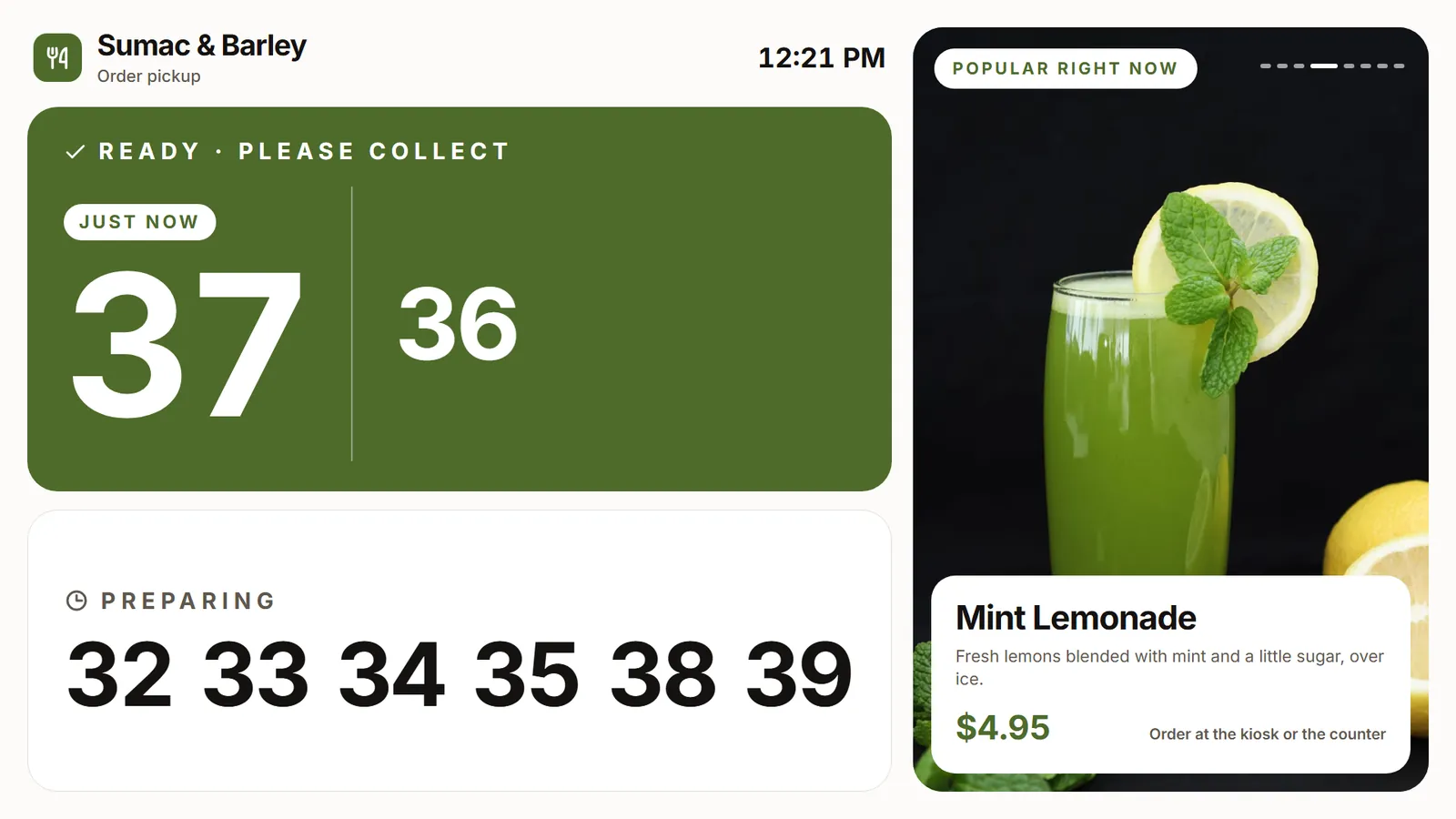
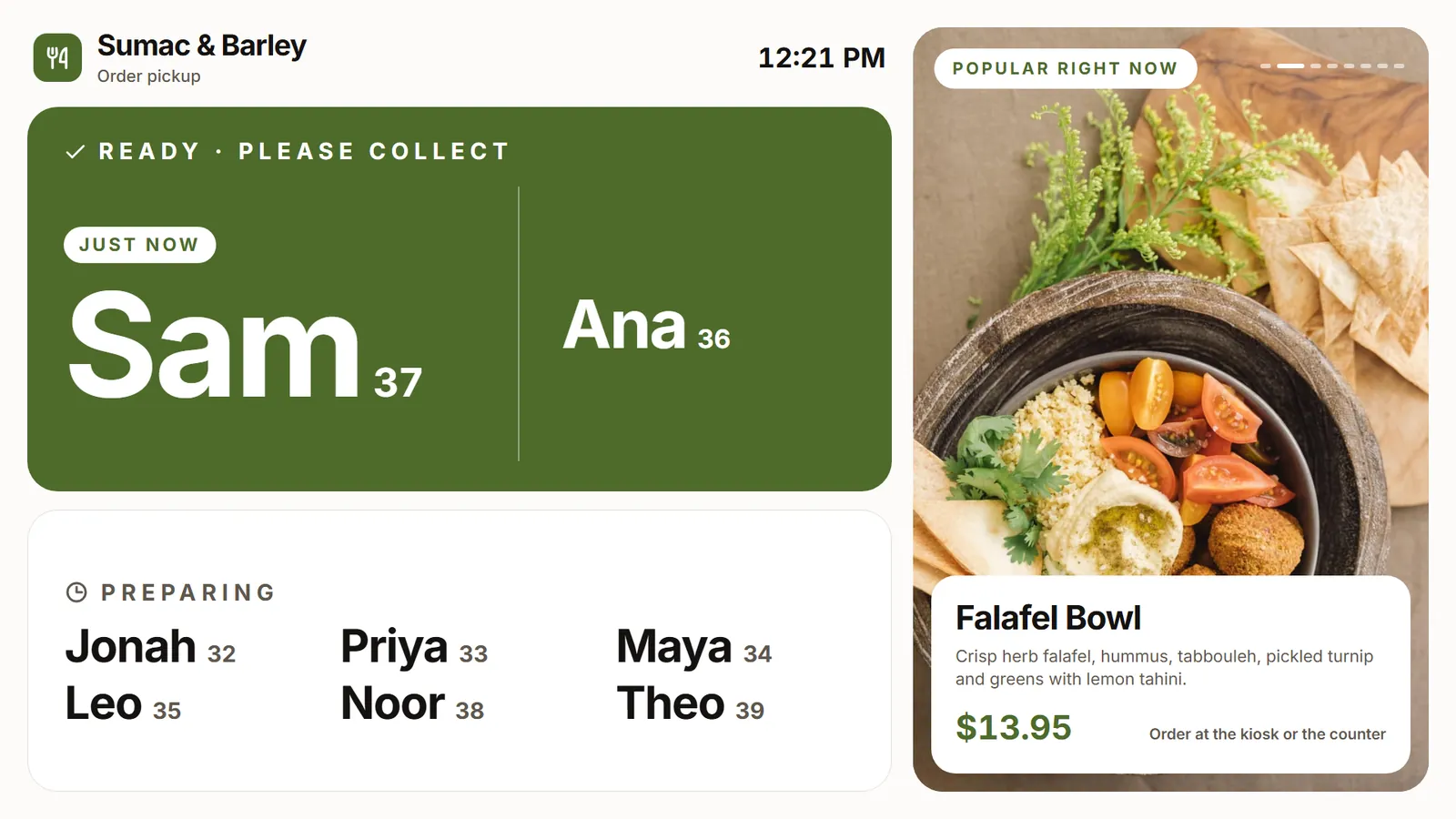
A TV by the counter shows orders being prepared and ready to collect, by number or first name, with dish photos. First names are never kept after the order is collected.
Getting paid
Getting paid, done properly.
Take cards on the kiosk, on guests' phones or on your own card machine, and handle cash, tips and refunds the way a counter really works.
Paying, from the guest's side
Real screens from three orders at Sumac & Barley, one of our demo restaurants.
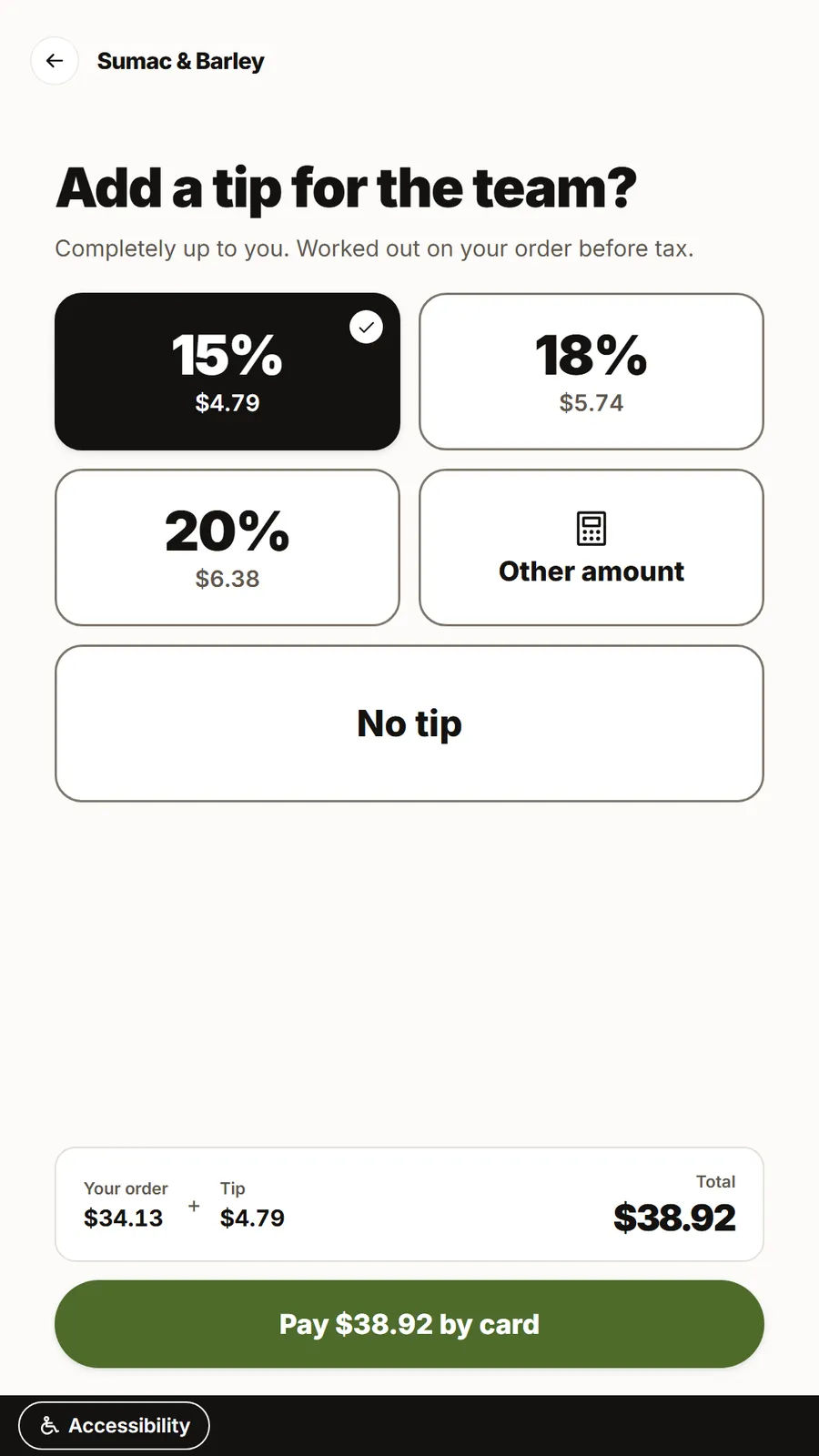
A tip, with "No tip" as big as the restKiosk · order 34
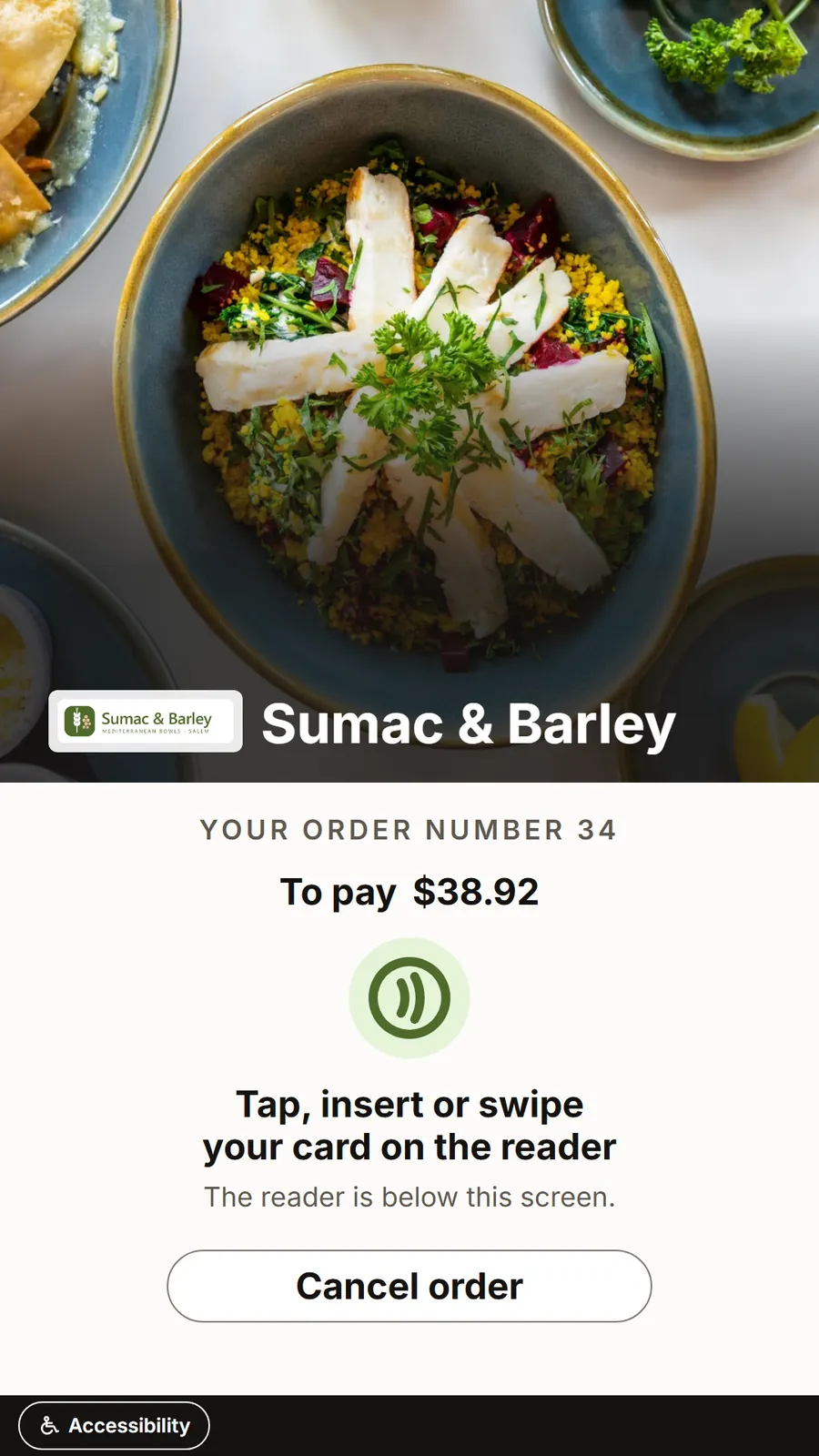
Pay by card: tap, insert or swipeKiosk · order 34
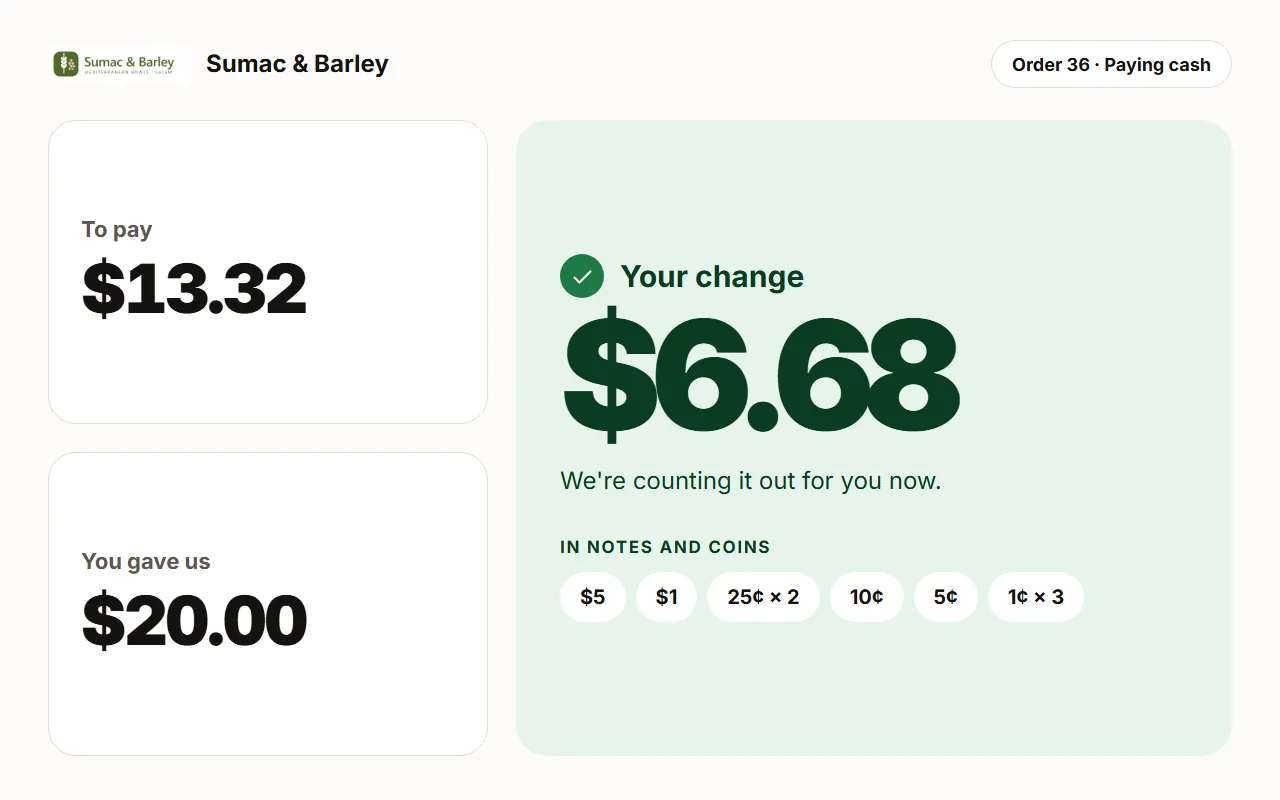
Pay cash, with the change on the guest's screenCounter · order 36
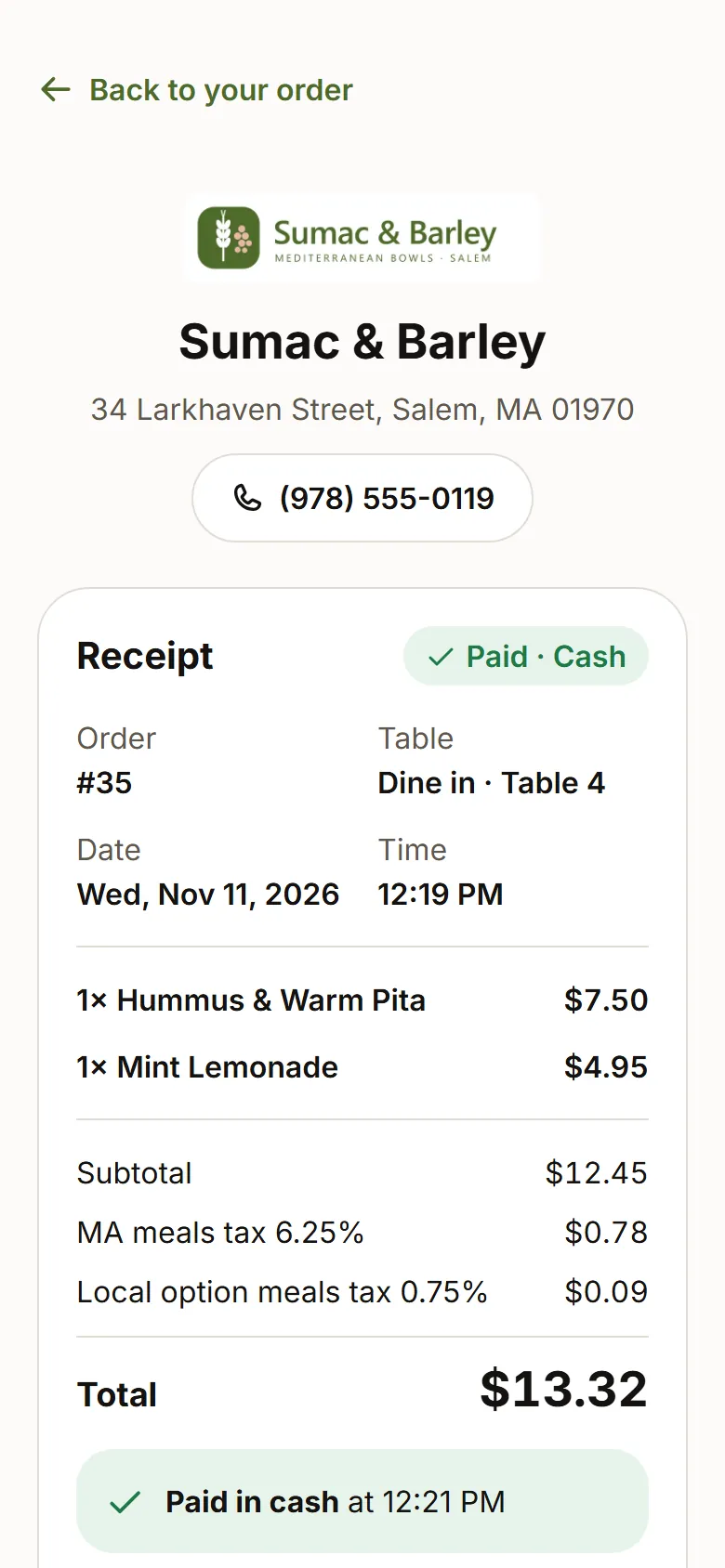
The receipt, on the guest's phoneTable 4 · order 35
Card
At the kiosk, on guests' phones (including Apple Pay and Google Pay), or on your own card machine. Keep your card machine and your card processor and use them alongside the platform.
Tips
On the kiosk, on phones and at the counter. Suggested percentages, or dollar amounts on small orders, with "No tip" always as big as the other choices. Tips are on unless you turn them off, and they're kept separate from sales and don't count toward meals tax.
Cash, done properly
Type in what the guest handed over and see the change to give, even as notes and coins. The cash drawer opens on its own. Part cash, part card works too, and gift certificates and checks are recorded.
Discounts and comps
You set them up (staff meal, senior, military) and a manager approves the ones that need it. They come off before tax, and each one is logged with who gave it and why.
Refunds
The whole order or a single dish, approved by a manager. A cash refund opens the drawer.
Receipts
Printed, and on the guest's phone.
No card data is stored on Jendpoint systems. Card payments run through Stripe, or through your own card machine.
No card surcharges, ever.
Closing up and the numbers
Closing up, without the headache.
Close the day, hand your accountant the figures, and start tomorrow knowing how yesterday went.
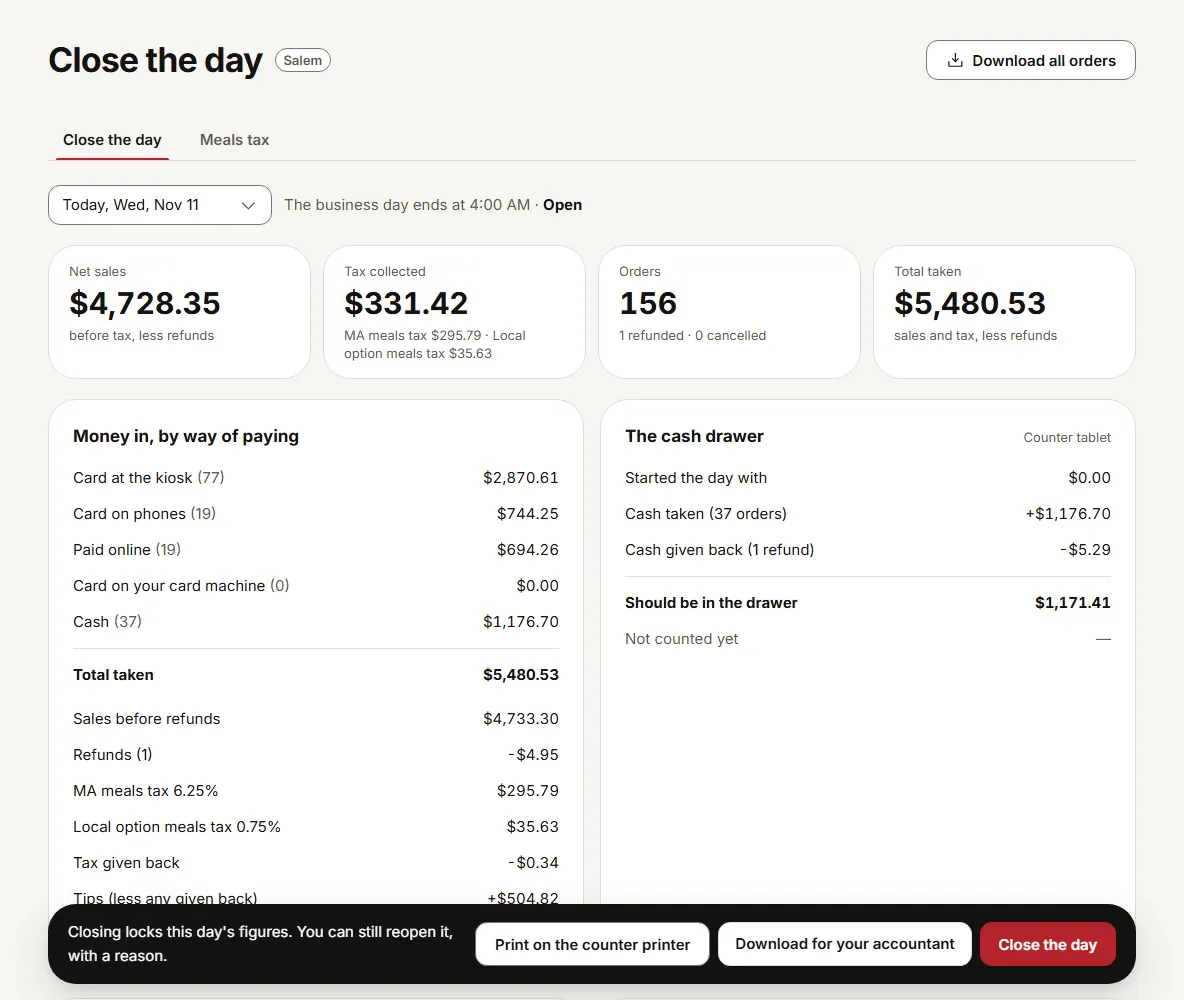
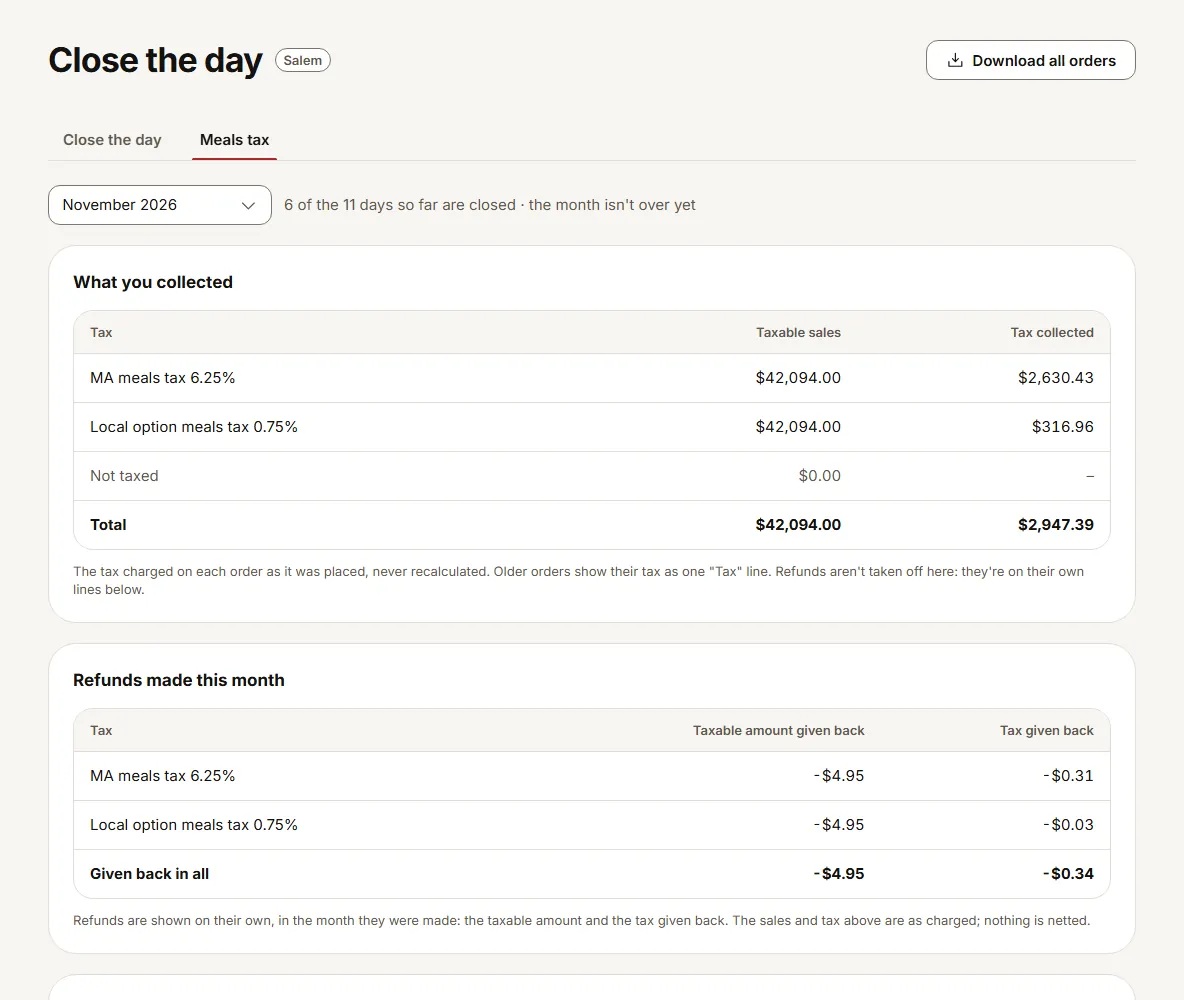
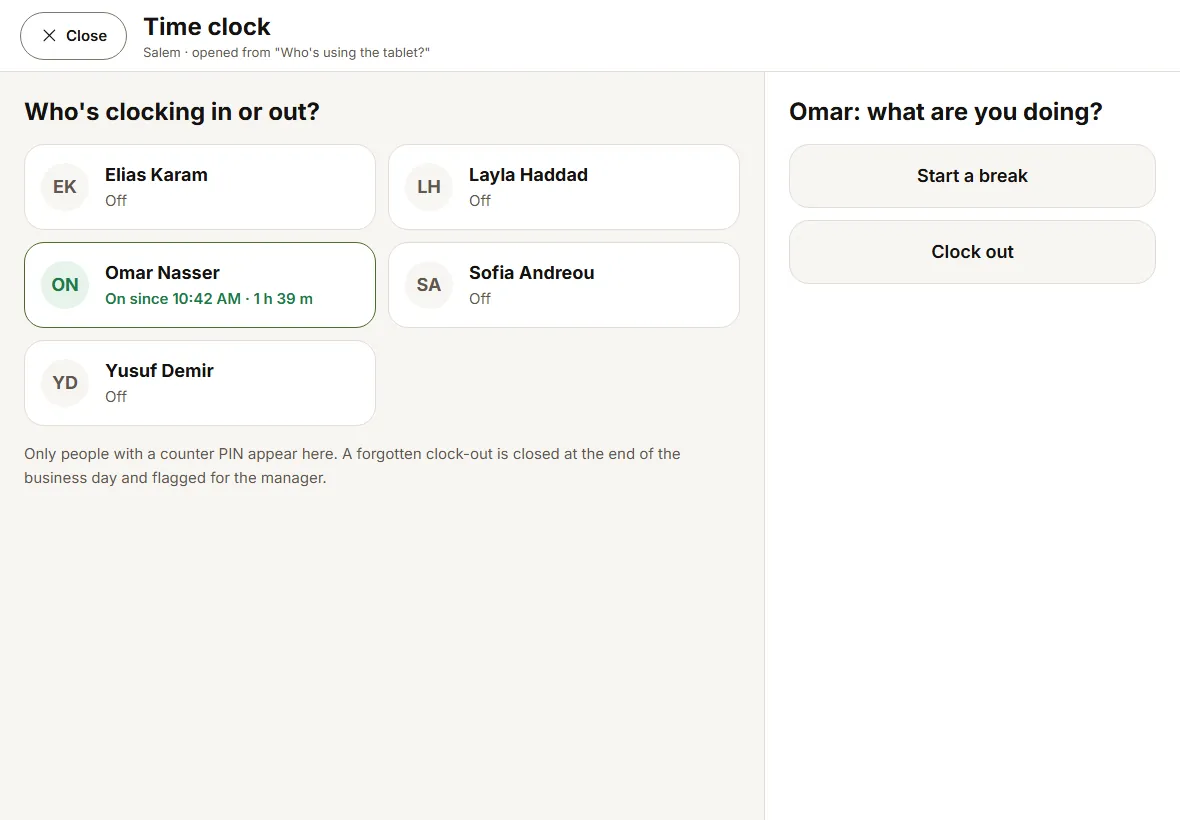
What closing up includes
Close the day
Every way of paying, refunds, tips, discounts and the drawer. The figures lock when the day is closed. Print the report on the counter printer, or download it for your accountant.
ProfessionalCount the drawer
Note by note or just the total, with paid-outs, short or over, and why.
ProfessionalMeals tax, month by month
Taxable sales and tax by rate, day by day, for your accountant to check.
ProfessionalThe dashboard
Trends, best sellers, busiest days and hours.
ProfessionalThe morning email
Yesterday's sales, orders, busiest hour and best seller.
ProfessionalA closing card
At closing time, for whoever closes up: tonight's orders and takings, and what's left to do.
Your data is yours
Download all your orders, any time.
The team
Staff PINs, a time clock that's separate from signing in, breaks, forgotten clock-outs fixed with a reason, and a payroll file with hours and tips.
Professional
Jendpoint looks after it
Someone is always watching.
The platform is set up on site and looked after by the people who set it up.
Set up on site
By Jendpoint IT Services, an on-site IT company in Massachusetts.
Watched around the clock
We watch the platform around the clock, and your equipment while you're open. A printer out of paper or a screen that drops off raises an alert, and we call you or fix it remotely.
Every order's journey
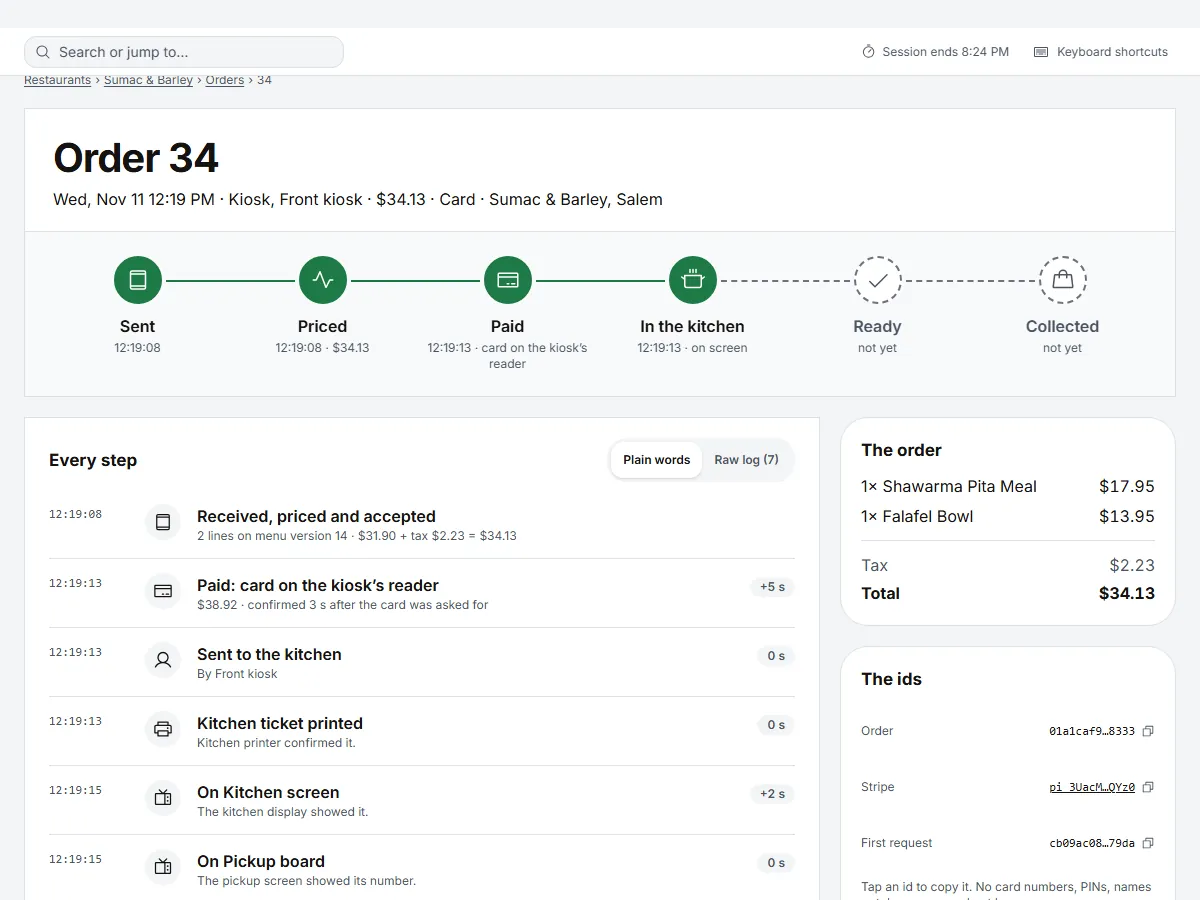
If a guest says "my order never came", Jendpoint can see each step (sent, priced, paid, shown in the kitchen, printed, collected) and where it stopped.
Remote help only with your approval
Every support action is logged.
Swap a broken tablet in minutes
Approve the replacement and its settings come straight back.
Hardware
Start with what you have, then grow.
Runs on an Android tablet, a Windows touch screen or a Chromebook. An iPad works for the counter. On the Starter plan, your own tablet is fine.
Start with what you have
Guests order on their phones, the counter screen doubles as the kitchen screen, and you keep your card machine and cash box.
Add a printer and a drawer
A budget USB receipt printer and cash drawer plugged into the counter tablet, and tickets printed for the kitchen.
The full setup
A kitchen screen, cloud printers (Star and Epson), card readers, kiosks and the pickup TV. Jendpoint quotes and installs the hardware.
If the internet goes down
Jendpoint installs a backup internet connection and battery backup. The screens tell guests to order at the counter, and there's a printed fallback. Card payments on the platform need an internet connection, which is why the backup connection matters.
Security and privacy
Your restaurant's data, kept yours.
Kept separate
Each restaurant's data is kept separate.
No card data stored
No card data is stored on Jendpoint systems. Card payments run through Stripe, or through your own card machine.
Nothing collected from guests
No app, no account and no personal data collected from guests. A first name for the pickup screen is erased once the order is collected.
Signed in safely
Two-step sign-in, an audit log of every sensitive action, and a fresh check before a new device is approved.
Plans and founding spots
Start free, as a founding restaurant.
Two plans. Starter has everything a counter needs; Professional adds the kiosk, the team tools and the numbers.
| Starter Founding offer | Professional | |
|---|---|---|
| Price | No monthly fee for the first three months, and free setup. Small per-order platform fees apply; ask us for the details. | Pricing on request |
| Locations | One | One (more coming) |
| Ordering | Counter and QR at the table | Everything in Starter, plus the self-service kiosk |
| Devices | One counter device (your own tablet is fine), plus an optional kitchen screen and printer | More devices, the pickup TV, kiosks |
| Payments | Card on phones, your own card machine, cash with change due, tips | Everything in Starter |
| Staff | — | Staff PINs, the time clock, hours and the payroll file |
| Closing up | Today's own figures | Count the drawer, close the day, meals tax, the morning email |
| Insights | Today | The dashboard: trends, best sellers, busiest hours |
| Branding | A small "Powered by Jendpoint" line | Your own branding, no "Powered by" line |
| Support | Email; on-site visits at field-service rates | Agreed with you before setup. |
Starter Founding offer
- Price
- No monthly fee for the first three months, and free setup. Small per-order platform fees apply; ask us for the details.
- Locations
- One
- Ordering
- Counter and QR at the table
- Devices
- One counter device (your own tablet is fine), plus an optional kitchen screen and printer
- Payments
- Card on phones, your own card machine, cash with change due, tips
- Staff
- —
- Closing up
- Today's own figures
- Insights
- Today
- Branding
- A small "Powered by Jendpoint" line
- Support
- Email; on-site visits at field-service rates
Professional
- Price
- Pricing on request
- Locations
- One (more coming)
- Ordering
- Everything in Starter, plus the self-service kiosk
- Devices
- More devices, the pickup TV, kiosks
- Payments
- Everything in Starter
- Staff
- Staff PINs, the time clock, hours and the payroll file
- Closing up
- Count the drawer, close the day, meals tax, the morning email
- Insights
- The dashboard: trends, best sellers, busiest hours
- Branding
- Your own branding, no "Powered by" line
- Support
- Agreed with you before setup.
Card processing fees are separate from the platform fee. We'll show you exactly what you'd pay on the demo.
Coming next
What we're building after launch.
Do guests need an app?
No. Guests order at the counter or the kiosk, or scan the table card and order in their phone's browser. No app, no account.
Do I need QR ordering?
No. The platform runs your whole counter on its own. Table ordering is there if you want it.
Do I need a kitchen screen?
No. Use printed tickets, a kitchen screen, or both. On a small setup, the counter screen can double as the kitchen screen.
What hardware do I need, and what does it cost?
You can start with the tablet you have. As you grow, Jendpoint quotes and installs printers, drawers, screens, card readers and kiosks, priced for your counter on the demo.
Can I keep my card machine?
Yes. Keep your card machine and your card processor and use them alongside the platform, or take cards on guests' phones and on kiosk readers.
What does taking cards cost?
Card processing fees are separate from the platform fee. We'll show you exactly what you'd pay on the demo.
Can customers tip?
Yes: on the kiosk, on phones and at the counter. Tips are on unless you turn them off, and "No tip" is always as easy to choose.
What about DoorDash and Uber Eats?
Type delivery-app orders in at the counter. They go to the same kitchen with the app's order code and stay out of the cash drawer.
What if the internet goes down?
Jendpoint installs a backup internet connection and battery backup. The screens tell guests to order at the counter, and there's a printed fallback. Card payments on the platform need an internet connection, which is why the backup connection matters.
Is my data mine?
Yes. Download all your orders any time.
Is there a contract?
Terms are agreed in writing with each founding restaurant before anything is set up. Ask us on the demo.
Who supports it, and when?
Jendpoint IT Services: set up on site, the platform watched around the clock and your equipment while you're open, remote help with your approval. Starter: email support, with on-site visits at field-service rates. Professional: Agreed with you before setup.
What does the founding offer include?
No monthly fee for the first three months, and free setup. Small per-order platform fees apply; ask us for the details. This is for the first 3 founding restaurants.
Book a demo
Let's put it on your counter.
Tell us a little about your restaurant. We'll get back to you to set up a demo, or to talk about a founding spot.